
 Sudhir Singh
Updated on August 31, 2025
For GST registration as a Normal Taxpayer/ Composition/ Casual Taxable Person/ Input Service Distributor (ISD)/ SEZ Developer/ SEZ Unit, perform the following steps:
Submitting Registration Application for Normal Taxpayer/ Composition/ Casual Taxable Person/ Input Service Distributor (ISD)/ SEZ Developer/ SEZ Unit
1. Access the https://www.gst.gov.in/ URL. The GST Home page is displayed.
2. Click the Services > Registration > New Registration option.
Alternatively, you can also click the REGISTER NOW link.

The Application form is divided into two parts as Part A and Part B.
Part A of Registration Application:
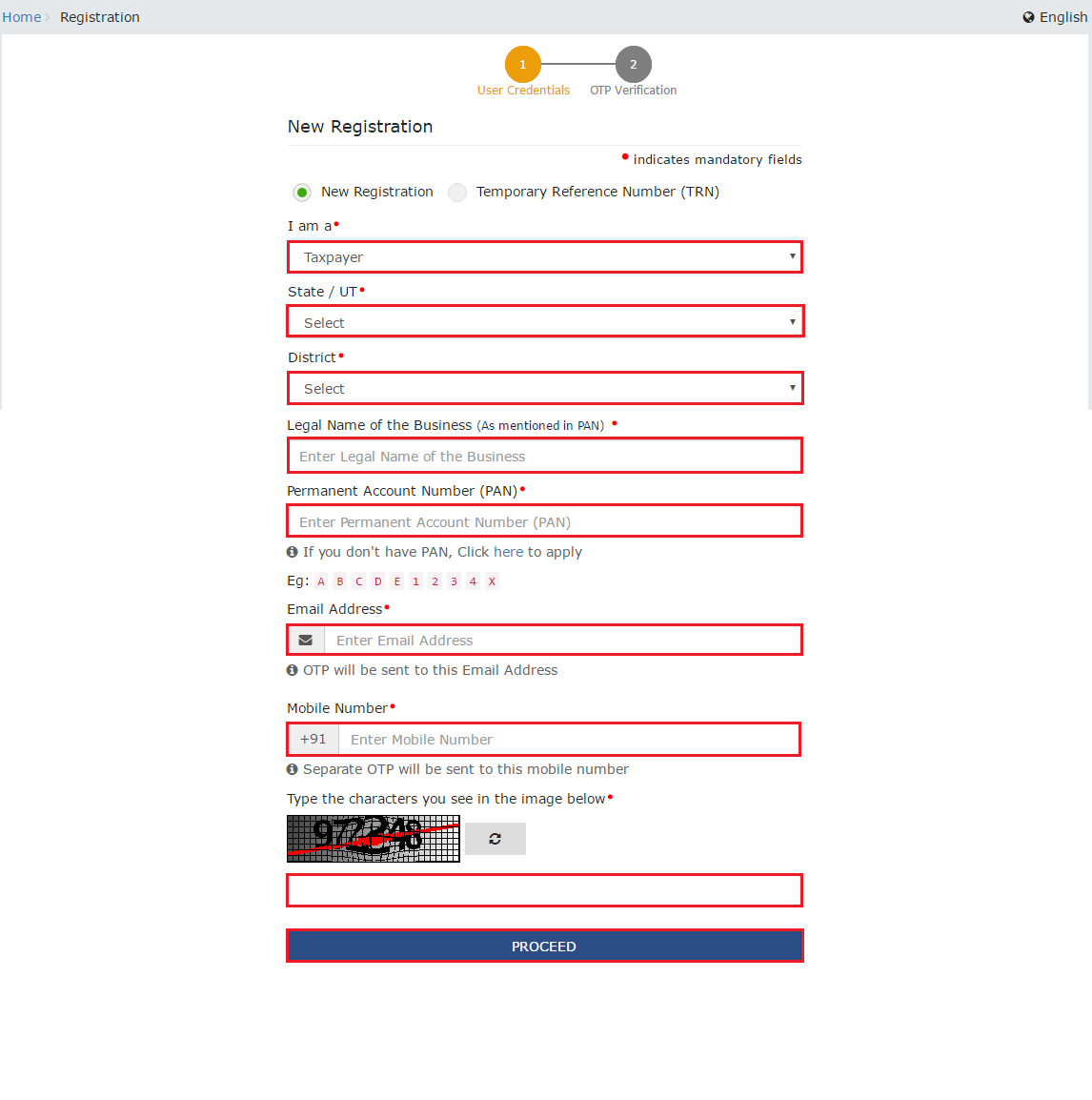
3. The New Registration page is displayed. Select the New Registration option.
4. In the I am a drop-down list, select the Taxpayer as the type of taxpayer to be registered.
5. In the State/UT and District drop-down list, select the state for which registration is required and the district.
6. In the Legal Name of the Business (As mentioned in PAN) field, enter the legal name of your business/ entity as mentioned in the PAN database.
7. In the Permanent Account Number (PAN) field, enter the PAN of your business or the PAN of the Proprietor.
Note:
• PAN is mandatory for registration with GST.
• In case you don’t have PAN, you can apply for a PAN. To do so, click the link here.
8. In the Email Address field, enter the email address of the Primary Authorized Signatory.
9. In the Mobile Number field, enter the valid Indian mobile number of the Primary Authorized Signatory.
Note: A Different OTP will be sent to your email address and mobile number you just mentioned for authentication.
10. In the Type the characters you see in the image below field, enter the captcha text and click the PROCEED button.
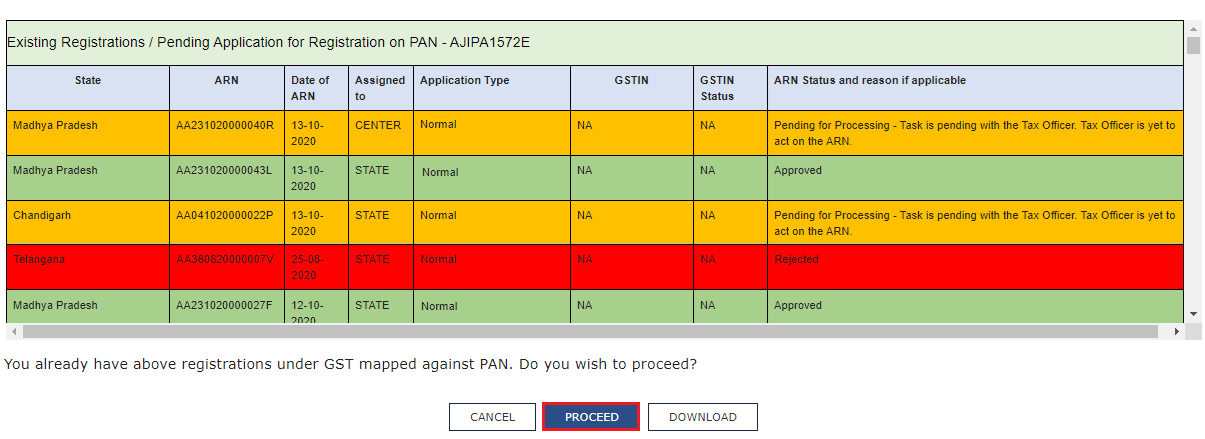
11. On clicking proceed, the GST Portal displays all the GSTINs / Provisional IDs / UINs / GSTP IDs mapped to the same PAN across India. Click the PROCEED button.
Note:
- You can click the DOWNLOAD button to download the existing registration details in PDF format.
- The following colour code has been used to denote different statuses of the ARN:
- Green Colour: Green colour reflects the Approved Registration Application.
- Red Color: Red color reflects the Rejected Registration Application.
- Orange Color: Orange color reflects the Pending for Processing/Pending for order Registration Application.
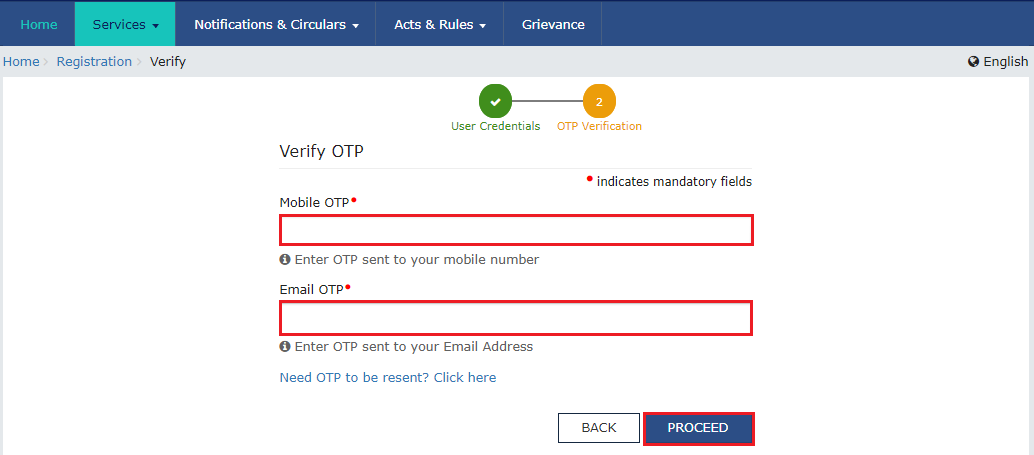
12. The OTP Verification page is displayed. In the Mobile OTP field, enter the OTP you received on your mobile number. OTP is valid only for 10 minutes.
13. In the Email OTP field, enter the OTP you received at your email address. OTP is valid only for 10 minutes.
Note:
• OTP sent to mobile number and email address are different.
• In case the OTP is invalid, try again by clicking the Click here to resend the OTP link. You will receive the OTP on your registered mobile number or email ID again. Enter both the newly received OTPs again.
14. Click the PROCEED button.
15. The system-generated Temporary Reference Number (TRN) is displayed. Click the PROCEED button.
Note:
- You will receive the TRN acknowledgment information at your email address as well as your mobile number.
- Alternatively, you can also click Services > Registration > New Registration option and select the Temporary Reference Number (TRN) radio button to log in using the TRN.

Part B of Registration Application:
16. In the Temporary Reference Number (TRN) field, enter the TRN generated and enter the captcha text as shown on the screen and click the PROCEED button.
17. The Verify OTP page is displayed. You will receive the same Mobile OTP and Email OTP.
Note: These OTPs are different from the OTPs you received in the previous step.
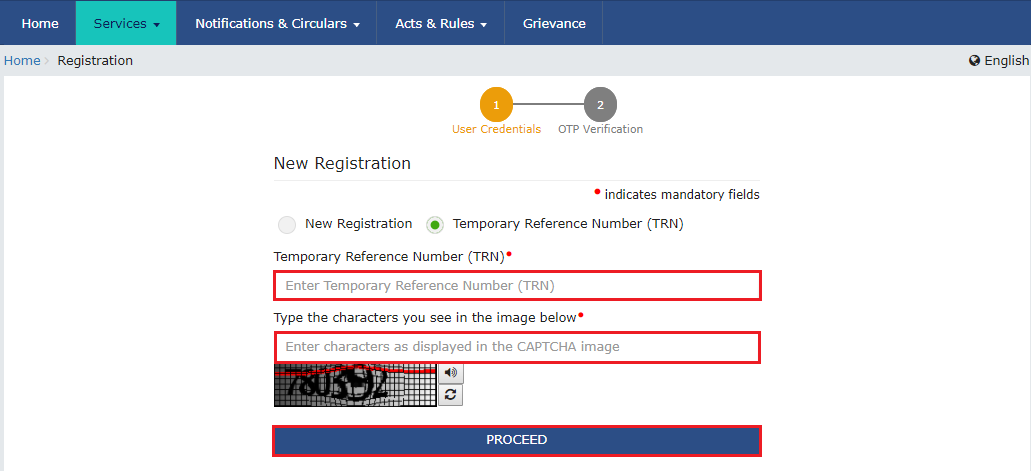
18. In the Mobile / Email OTP field, enter the OTP received on your mobile number and email address. OTP is valid only for 10 minutes.
Note:
• OTP sent to mobile number and email address are the same.
• In case the OTP is invalid, try again by clicking the Need OTP to be resent> Click here link. You will receive the OTP on your registered mobile number or email ID again. Enter the newly received OTP again.
19. Click the PROCEED button.

20. The My Saved Application page is displayed. Under the Action column, click the Edit icon (icon in blue square with white pen).
Note:
• Notice the expiry date shown below in the screenshot. If the applicant doesn’t apply within 15 days, the TRN and all the information filled against that TRN will be purged after 15 days.
• The status of the registration application is ‘Draft’ unless the application is submitted. Once the application is submitted, the status is changed to ‘Pending for Validation’.

21. The Registration Application form with various tabs is displayed. On the top of the page, there are ten tabs as Business Details, Promoter/ Partners, Authorized Signatory, Authorized Representative, Principal Place of Business, Additional Places of Business, Goods and Services, State Specific Information, Aadhaar Authentication and Verification. Click each tab to enter the details.
Note 1: Details to be entered in Bank Accounts tab has been made optional and non-mandatory w.e.f. 27th Dec 2018. You can now enter the Bank Accounts details by filing an Amendment application only. Post grant of GSTIN, when you login for the first time on the GST Portal, you will be prompted to file a non-core amendment application to enter Bank Accounts details.
Note 2: Persons applying for registration as a regular taxpayer can also add additional places of business or a new authorized signatory, if required.
- Business Details
- Promoter/ Partners
- Authorized Signatory
- Authorized Representative
- Principal Place of Business
- Additional Places of Business
- Goods and Services
- State Specific Information
- Aadhaar Authentication
- Verification
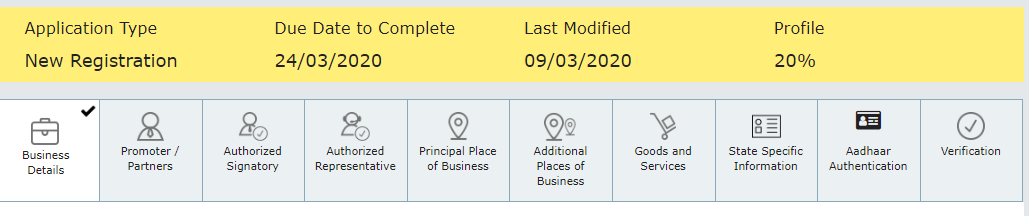
21 (a) Business Details tab:
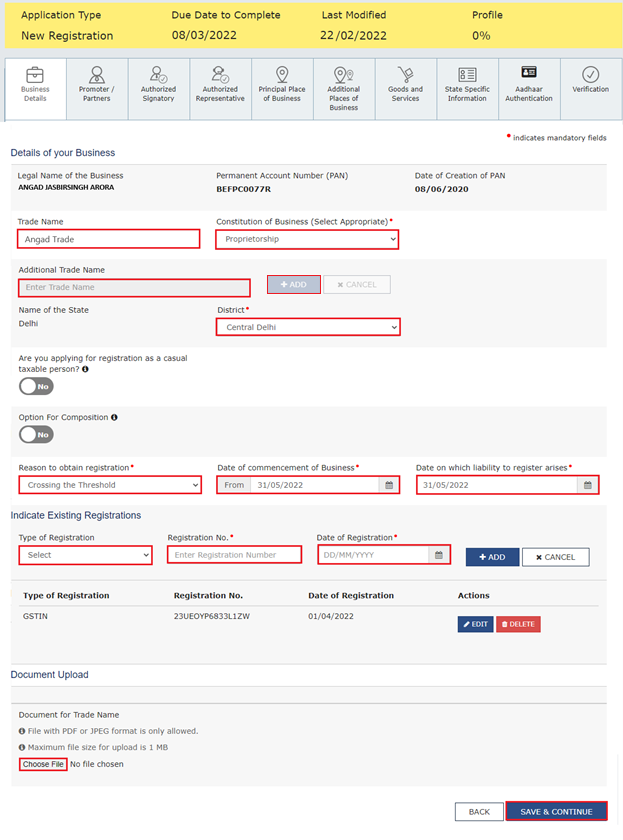
The Business Details tab is selected by default. This tab displays the information to be filled for the business details required for registration.
a) In the Trade Name field, enter the trade name of your business. In the field for Additional Trade Name, add the additional trade name of your business, if any. You can add up to nine additional trade names.
Note: The Trade name of the business is different from the legal name of the business.
b) In the Constitution of Business drop-down list, select the type of constitution of your business. This will be validated with the CBDT Database for a match with the PAN entered in Part A of the form.
c) In the District drop-down list, select the district of your business.
d) In the Option for Composition field, select Yes in case you want to opt for the Composition Levy, or else select No.
Note: In case of Yes
i. Select the checkbox for the category of registered person.
ii. Select the checkbox to accept the declaration for opting for Composition Levy.

Note: A regular taxpayer can opt for the Composition Levy if the Taxpayer expects likely aggregate turnover to likely remain below the threshold limit specified for opting for the Composition Levy.
e) Select the Date of commencement of Business using the calendar.
f) Select the Date on which the liability to register arises using the calendar.
Note:
• The registration for a normal taxpayer shall be effective from the date on which the person becomes liable for registration, if he applies for new registration within 30 days from the date on which the liability to register arises. However, in case of delay in filing of application for New Registration, the date of liability to register remains the same, but the effective date of registration shall be the date of grant of registration.
• A casual taxable person shall electronically apply at least five days before the commencement of business.
• In case of a casual Taxpayer, the date on which liability to register arises is auto-filled.
• In case of Reason to obtain Registration selected voluntarily, this field is disabled and visible.
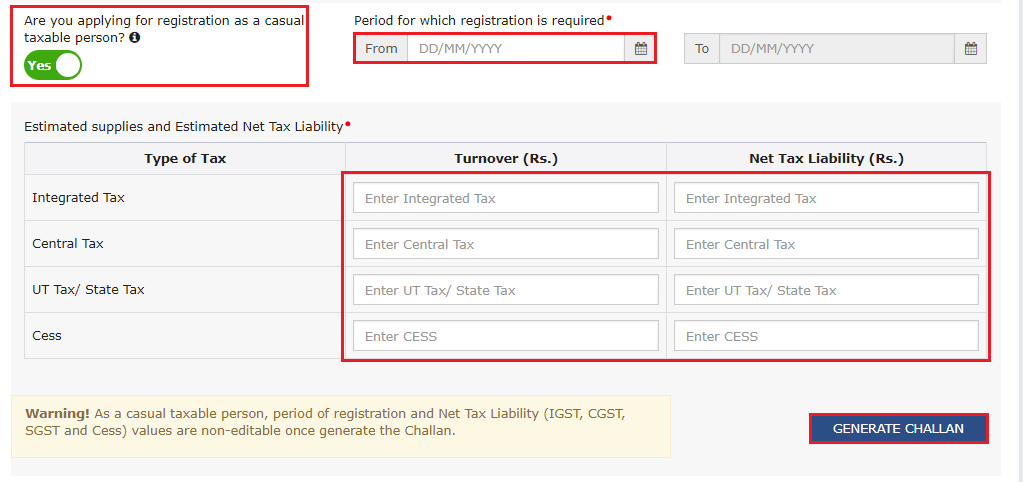
g) Are you applying for registration as a casual taxable person? Field, select Yes in case you are a casual taxpayer, or else select No.
Note: In case of Yes
i. In the Estimated supplies and Estimated Net Tax Liability field, enter the estimated turnover and Net Tax Liability.
ii. The casual taxpayer may opt to pay the estimated tax liability by clicking the CREATE CHALLAN button.
Note:
• Casual taxable person means a person who occasionally undertakes transactions involving the supply of goods and/ or services in a taxable territory, where he has no fixed place of business.
• A person applying for registration as a casual taxable person, while submitting the Application form, creates a Challan, and a Provisional GSTIN is generated by the GST Portal, enabling the taxpayer to make an advance deposit of tax. An acknowledgement is issued electronically only after the deposit is made in the electronic cash ledger.
• You can also create multiple challans if the payment status is shown as failed for the previous challan.
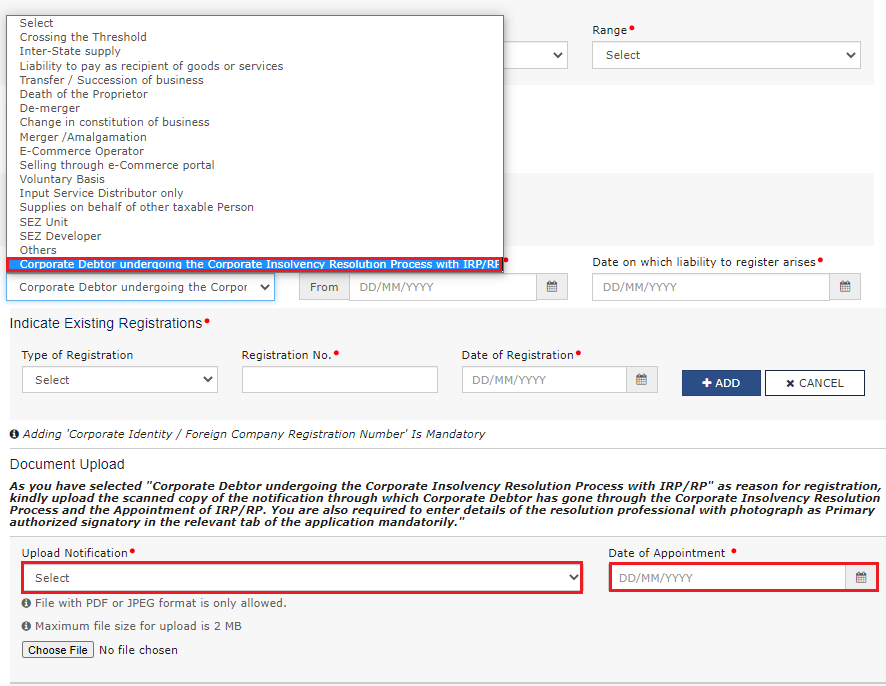
i) In the Reason to obtain registration drop-down list, select the reason to obtain registration for your business.
Note: In case you want to register as an Input Service Distributor (ISD), all you need to do is select Input Service Distributor only, under Reason to obtain registration in the Business Details section of PART B of the New Registration Application.

Note:
- In case you want to register as Interim Resolution Professionals (IRPs)/ Resolution Professionals (RPs) appointed to undertake corporate insolvency resolution proceedings for Corporate Debtors, select Reason for Registration as “Corporate Debtor undergoing the Corporate Insolvency Resolution Process with IRP/RP” from the drop-down list.
- The IRP/RPs can apply for new registration on the GST Portal on behalf of the Corporate Debtors, in each of the States or Union Territories, on the PAN and CIN of the Corporate Debtor, where the corporate debtor was registered earlier.
- Please enter the date of your appointment as IRP/RP as the “Date of Commencement of Business”, in case of registration.
- You need to upload the scanned copy of the notification through which the Corporate Debtor has gone through the Corporate Insolvency Resolution process and the appointment of IRP/RP.
Note: For the SEZ Unit, the Reason to obtain registration
i. In case you want to register as a SEZ Unit, all you need to do is select SEZ Unit under Reason to obtain registration in the Business Details section of PART B of the New Registration Application.

ii. Select the Name of SEZ from the drop-down list and enter the Designation of Approving Authority.
iii. Enter the Approval Order Number and select the Approval date of the Order using the calendar.
IV. Select the Period of Validity using the calendar.
Note:
- For an applicant/taxpayer applying for Registration as an SEZ Unit, the period of validity needs to be provided as a mandatory requirement.
- Post expiry of the validity, as entered in the registration application, the registration can be cancelled by the applicant/taxpayer. 30 days before the expiry of the validity of the SEZ Unit, an email and SMS will be sent to the Authorized Signatory of the applicant/taxpayer.
- Or else, the tax officer can also initiate suo-moto cancellation proceedings after the expiry of the validity, in case the Letter of Approval (LOA)/Letter of Permission (LOP) extension of date is not given by the taxpayer.
- SEZ details, including the period of validity of LOA/LOP, can be amended through the process of core amendment of registration, if required. Click here for details.
v. Click the Choose File button to upload the LOA/LOP issued by the SEZ Authority, Government of India by choosing Letter of Approval or Letter of Permission issued.

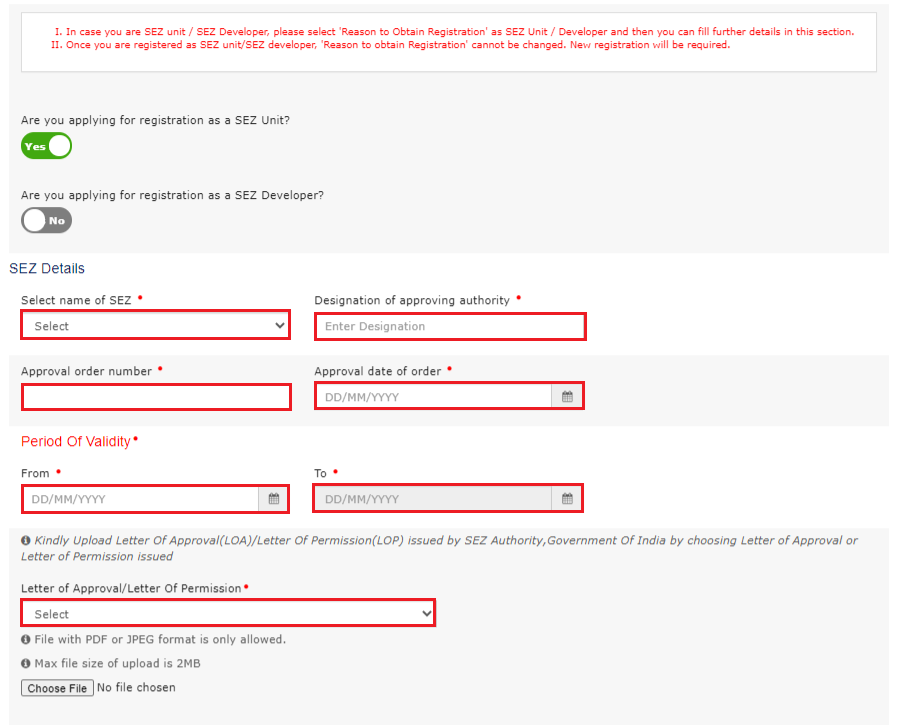
Note: For SEZ Developer, athe s the Reason to obtain registration
i. In case you want to register as an SEZ Developer, all you need to do is select SEZ Developer under Reason to obtain registration in the Business Details section of PART B of the New Registration Application.

ii. Select the Name of SEZ from the drop-down list and enter the Designation of Approving Authority.
iii. Enter the Approval Order Number and select the Approval date of the Order using the calendar.
iv. Select the Period of Validity using the calendar.
Note:
- For an applicant/taxpayer applying for Registration as an SEZ Developer, the period of validity needs to be provided as a mandatory requirement.
- Post expiry of the validity, as entered in the registration application, the registration can be cancelled by the applicant/taxpayer. 30 days before the expiry of the validity of the SEZ Developer, an email and SMS will be sent to the Authorized Signatory of the applicant/taxpayer.
- Or else, the tax officer can also initiate suo-moto cancellation proceedings after the expiry of the validity, in case the Letter of Approval (LOA)/Letter of Permission (LOP) extension of date is not given by the taxpayer.
- SEZ details, including the period of validity of LOA/LOP,,an be amended through the process of core amendment of registration, if required. Click here for details.
v. Click the Choose File button to upload the LOA/LOP issued by the SEZ Authority, Government of India, by choosing the Letter of Approval or Letter of Permission issued.
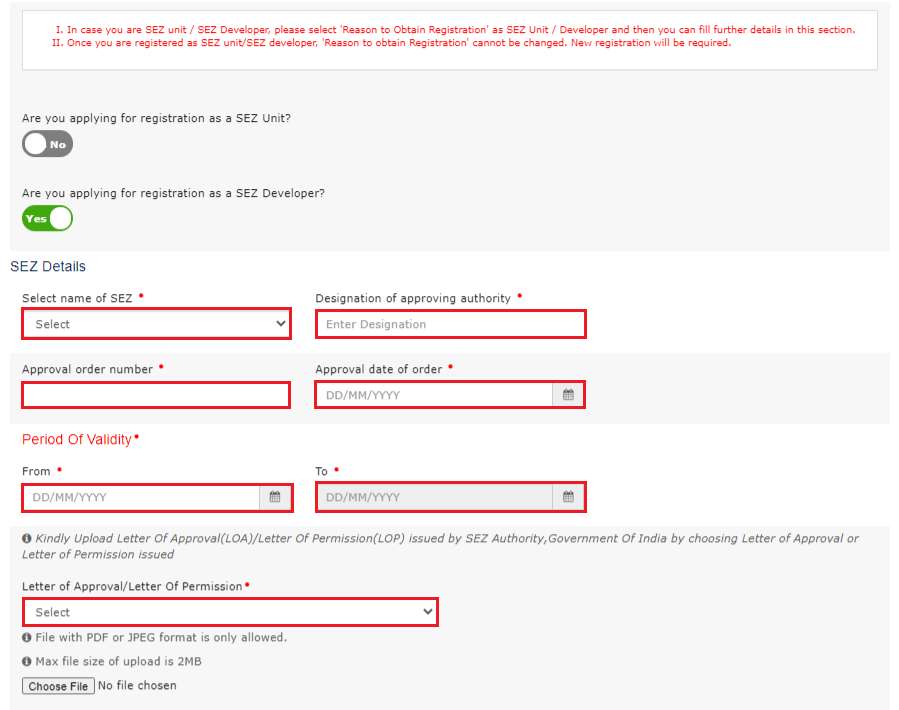
vi) In the Indicate Existing Registrations section, select the existing registration type, Registration No. And Date of Registration. Click the Add button.
Note 1: You can include registration type as Central Sales Tax Registration Number, Central Excise Registration Number, Service Tax Registration Number etc.
Note 22e2: The details added under the section Indicate Existing Registration with respect to temporary ID will be available to the tax officer in case the taxpayer adds his/her temp ID details while applying for new registration.
h) Click the SAVE & CONTINUE button.
i) In case you have opted as a composition taxpayer and selected the Category of Registered Person as “Manufacturers, other than manufacturers of such goods as may be notified by the Government for which option is not available”, tthe hen the screen below will appear.
j) Select the checkbox to confirm that you are not in the business of manufacturing any of the commodities as shown in the screenshot below, and then click CONFIRM.
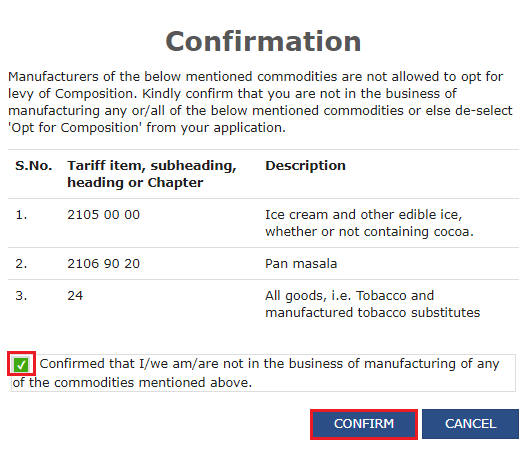
k) You will notice a blue tick on the Business Details section indicating the completion of the tab information, and notice the Profile indicating the percentage completion of the application form.

l) Select the checkbox to confirm that you are not in the business of manufacturing any of the commodities as shown in the screenshot below, and then click CONFIRM.

21 (b) Promoter/ Partners tab:
This tab page displays the details of the stakeholders chosen in the constitution of the business. You can enter details of up to 10 Promoters or Partners.

To fill in the details of principal/additional place of business and Residential address, follow the below simple steps below:
i) Type address or PIN code or latitude, longitude (enter the numeric value followed by “,” (E.g.: 22.48, 77.89, 22,7) and other alpha numeric value. You can enter minimum 2 characters based on entered values, auto suggestions will be shown.) in the Enter Address or Latitude, Longitude search box available in the right corner of the map.
ii) Based on the inputs provided, related addresses will be shown below the text box for selection.
iii) On selection of any address/location in the search box, the location icon will be pinned in the map at the selected location.
iv) Drag the location icon to pin your exact location, if required.
v) Once the location is rightly pinned in the map, click the Confirm button on the location icon.
Detailed steps are as follows:

On clicking the Confirm button, the address fields under the map will be auto-populated.
Note 1: If you wish to search address by latitude and longitude, you have to enter the numeric value only using a comma between latitude and longitude (for e.g.-22.48, 77.89). You can also search address by PIN code or by typing at least 2 characters of the address.

Note 2: The System will treat coordinates in the sequence of Latitude and Longitude if no directions are entered. If directions are entered, coordinates with N or S will be treated as Latitude. Coordinates with E or W will be treated as Longitude.

Note 3: Negative values for latitude and longitude are allowed. If a negative value is entered for latitude, the system will consider it as South direction and for longitude system will consider it as West. If negative values are entered with directions, then directions would be considered. Directions needto be written for both coordinates.
If the coordinates entered are outside the territorial boundaries of India, then the system will display the following message.

Note 4: If map services are unavailable, an error pop-up message will be shown, and you can retry after some time by clicking on the CLOSE button.

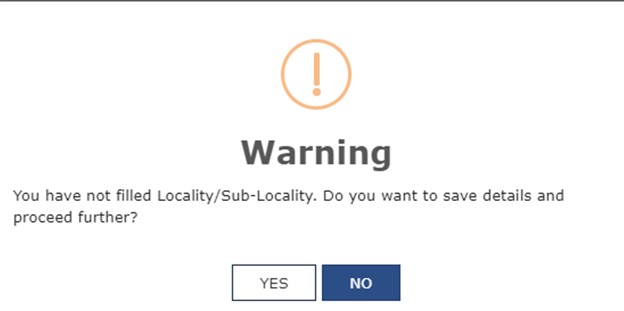
Note 5 (a): If Locality/Sub-Locality does not match with the Pin-Code entered by the taxpayer, then the following Warning message will be displayed on the screen. The Taxpayer can click on the NO button and fill in the correct details in the address details section,and if they want to save details,,ls then click on the YES button.


Note 5 (b): If Locality/Sub-Locality is leftt blank, the taxpayer will get the following warning messages. The Taxpayer can click on the NO button and fill in the required details in the address details section, and if they want to proceed further,, leaving it blank,, then click othe n YES button.
a) In the Personal Information section, enter the personal details of the stakeholder, like name, date of birth, address, mobile number, email address and gender.

b) In the Identity Information section, enter the official information of the stakeholder.
i. In the Designation / Status field, enter the designation of the stakeholder.
ii. In the Director Identification Number (DIN) field, enter the DIN of the stakeholder issued by the Ministry of Corporate Affairs. This number is not mandatory in case of proprietorship.

Note: DIN number is mandatory in case of:
• Private Limited Company
• Public Limited Company
• Public Sector Undertaking
• Unlimited Company
• Foreign Company registered in India
iii. In case you are a citizen of India, select Yes or else select No. In case of NO, in the Passport Number field, enter the passport number.
iv. In the Permanent Account Number (PAN) field, enter the PAN of the stakeholder.
v. In the Aadhaar Number field, enter the Aadhaar number of the stakeholder.
c) In the Residential Address in India section, enter the address details of the stakeholder.

- You can select the address from the Locate your address field on the map. On typing the address in the Locate your address search bar, you will be given a list of options. Select from the list and click the Confirm button in the pop-up above the pin drop.

- The pin on the map can also be moved to the appropriate location. Click the Confirm button once the pin has been placed at the correct location.
- Based on the selection of the address, a few fields under Residential Address will be auto-populated. The fields under the Residential address section are editable and can be changed even after auto-population.
- To change the address, the user can click the Reset Address button.

d) In the Document Upload section, click the Choose file button. Navigate and upload the photograph of the stakeholder.

Note: You can upload PDF or JPEG files with a maximum file size for upload of 1 MB.
e) In case the promoter or partner is also the authorized signatory, select the Also Authorized Signatory as Yes, and details will be auto-populated in the Authorized Signatory tab.

f) Click the SAVE & CONTINUE button.
Note: To add more details of a promoter or partner, click the ADD NEW button and repeat the steps each time after adding the details of the stakeholder

Note: Minimum 2 Promoters and Partners need to be added to apply for registration. In case you are proceeding with less than 2 Promoters and Partners, the following error message will be displayed.
.png "GST Registration - Ultimate Step by Step Guide")
21 (c) Authorized Signatory tab:
This tab page displays the details of the authorized signatory. You can enter details of up to 10 authorized signatories.
Note 1: In case you are applying for registration as Interim Resolution Professionals (IRPs)/ Resolution Professionals (RPs) appointed to undertake corporate insolvency resolution proceedings for Corporate Debtors, you need to add details in this tab mandatorily,, along with relevant documents. The appointed IRP/RP will bthe e Primary Authorized Signatory of the newly registered Company. They need to enter their details as the Primary authorized signatory in the Authorized Signatory tab of the registration application mandatorily.
Enter your details in the Authorized Signatory tab. Attach the relevant document also.

Note 2: If you wish to search address by latitude and longitude, you have to enter the numeric value only using a comma between latitude and longitude. You can also search address by PIN code or by typing minimum 2 characters (for e.g.-22.48, 77.89) of the address.
On clicking the Confirm button, the address fields under the map will be auto-populated.

Note 3: If the coordinates entered are outside the territorial boundaries of India, then the system will display the following message.

a) In case you are the Primary Authorized Signatory, select the checkbox for Primary Authorized Signatory.
b) In the Personal Information section, enter the personal details of the authorized signatory,, like name, date of birth, mobile number, email address and gender.
c) In the Identity Information section, enter the official information of the stakeholder.
i. In the Designation / Status field, enter the designation of the authorized signatory.
ii. In the Director Identification Number (DIN) field, enter the DIN of the authorized signatory issued by the Ministry of Corporate Affairs. This number is not mandatory in case of proprietorship.
Note: DIN number is mandatory in case of:
• Private Limited Company
• Public Limited Company
• Public Sector Undertaking
• Unlimited Company
• Foreign Company registered in India
iii. In case you are a citizen of India, select Yes or else select No.
a. In case of NO
b. In the Passport Number field, enter the passport number.
iv. In the Permanent Account Number (PAN) field, enter the PAN of the authorized signatory.
v. In the Aadhaar Number field, enter the Aadhaar number of the authorized signatory.
Note:
If you provide your Aadhaar her, (other than companies / LLP), you can file your returns,ns e,t etc uUsinge-Sign based on Aadhaar without the requirement of a Digital Signature.
d) In the Residential Address section, enter the address details of the authorized signatory. Based on the State selected, select the district and enter the corresponding pin code.
- You can select the address from the Locate your address field on the map. On typing the address, you will be given a list of options. Select from the list and click the Confirm button.
- The pin on the map can also be moved to the appropriate location. Click the Confirm button once the pin has been placed at the correct location.
- Based on the selection of the address, a few fields under Residential Address will be auto-populated.
- To change the address, the user can click the Reset Address button.
e) In the Document Upload section, click the Choose file button. Navigate and select the Proof of Appointment and photograph of the authorized signatory.
Note:
You can upload PDF or JPEG files with a maximum file size for upload of 1 MB for Proof of appointment of Authorized Signatory and 100 KB as a photograph of the authorized signatory.
f) Click the SAVE & CONTINUE button.
Note:
To add more details of the authorized signatory, click the ADD NEW button.

21 (d) Authorized Representative tab:
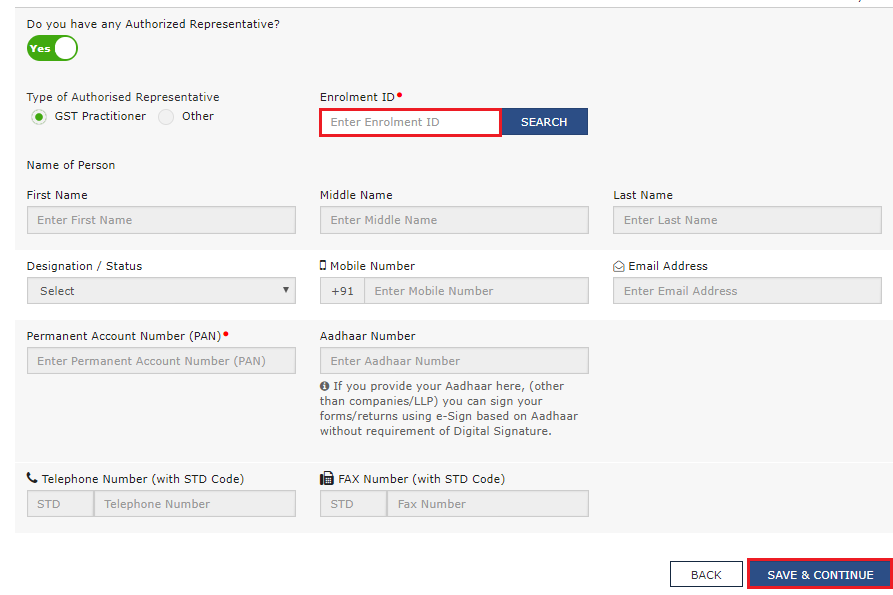
This tab page displays the details of the authorized representative.
a) Select Do you have any Authorized Representative using the radio button.
(i). In the case of a GST Practitioner,
a. In the Enrolment ID field, enter the enrolment ID of the authorized representative.
b. Click the SEARCH button.
Note: All details of the authorized representative will be auto-populated from the GST Portal.
(ii). Inthe case of Other
a. In the Name of Person section, enter the name, designation, mobile number and email address of the authorized representative.
b) Click the SAVE & CONTINUE button.
21 (e) Principal Place of Business tab:
This tab page displays the details of the principal place of the business. Principal Place of Business is the primary location within the State where a taxpayer’s business is performed. The principal place of business is generally the address where the business’s books of accounts and records are kept and is often where the head of the firm or at least top management is located.
Note: In case you are applying for registration as Interim Resolution Professionals (IRPs)/ Resolution Professionals (RPs) appointed to undertake corporate insolvency resolution proceedings for Corporate Debtors, in the Principal Place of business/ Additional place of business, you need to provide details as specified in the original registration of the Corporate Debtors.
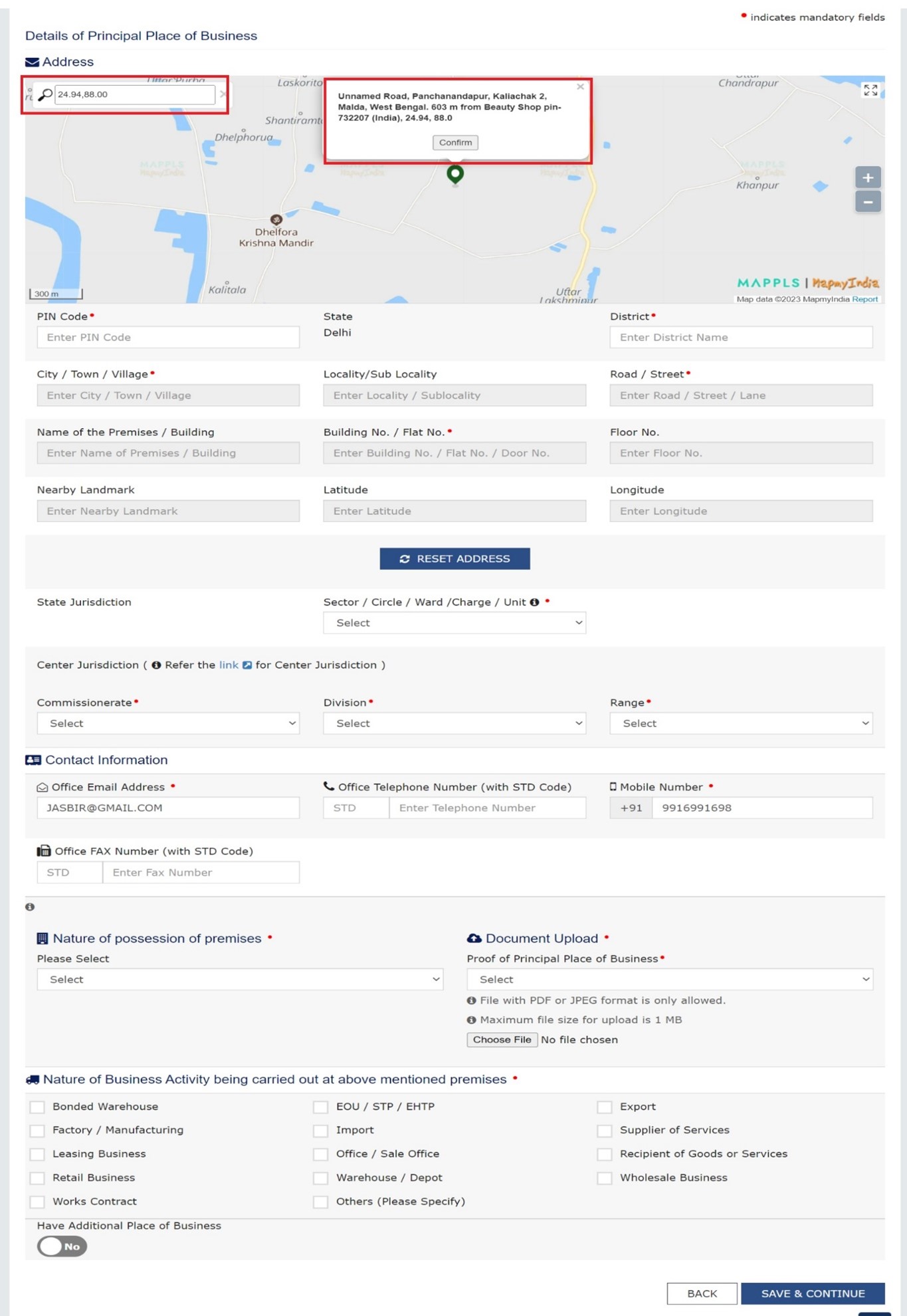
a) In the Address section, enter the address details of the principal place of business. Based on the State selected, select the district and enter the corresponding pin code. In the District and Sector/ Circle / Ward / Charge/ Unit drop-down list, select the district and sector/circle/ward/charge/unit number of your business. In the Commissionerate Code, Division Code and Range Code drop-down listss, select the appropriate choice.
Note: The State cannot be edited in this tab. It is displayed on the basis of the State selected in Part A of the Registration process.
Note: In case you don’t know the Center Jurisdiction, click the link to know about your Center Jurisdiction.
b) In the Contact Information section, enter the official contact details like Email address, telephone number (with STD Code), mobile number field and fax number (with STD Code).
cLikeof Possession of Premises drop-down list, select the nature of possession of premises.
Note: In case you need to upload multiple documents, kindly append all the documents to be uploaded as a single file and choose ‘Others’ value from ‘Nature of possession of business’ drop-down and select ‘Legal Ownership document’ value as Proof of Principal Place of Business and upload it.
d) In the Document Upload section, click the Choose file button. Navigate and select the proof of Principal Place of Business document.
Note:
- You can upload PDF or JPEG files with a maximum file size for upload of 1 MB.
- You can upload these documents for the proof of Principal Place of Business.
- For Own premises – Any document in support of the ownership of the premises, like the Latest Property Tax Receipt or Municipal Khata copy or copy of Electricity Bill.
- For Rented or Leased premises – A copy of the valid Rent / Lease Agreement with any document in support of the ownership of the premises of the Lessor, like the Latest Property Tax Receipt or Municipal Khata copy or coa py of the Electricity Bill.
- For premises not covered above – A copy of the Consent Letter with any document in support of the ownership of the premises of the Consenter, like Municipal Khata copy or Electricity Bill copy. For shared propertie,s also, the same documents may be uploaded.
e) In the Proof of SEZ Unit/SEZ Developer approval for the premises section, click the Choose File button to upload the proof of SEZ unit or SEZ developer approval for the premises.
Note:
- You can upload PDF or JPEG files with a maximum file size for upload of 1 MB.
- This attachment section is mandatory only if you have selected SEZ unit / Developer in ‘Reason to Obtain Registration’ in the Business Details tab.
- Please read the instructions specified on the form for uploading any documents.
f) Select the checkbox for Nature of Business activities being carried out at above mentioned premises.
g) In case you have an additional place of business, select Yes for Have Additional Place of Business.
h) Click the SAVE & CONTINUE button.

- Based on the pin code entered in the “Principal Place of Business” tab by the applicant, the State and Centre Jurisdiction gets displayed in the drop-down option for them.
- You can select the address from the Locate your address field on the map. On typing the address, you will be given a list of options. Select from the list and click the Confirm button.
- The pin on the map can also be moved to the appropriate location. Click the Confirm button once the pin has been placed at the correct location. Based on the selection of the address, a few fields under Residential Address will be auto-populated.
- To change the address, the user can click the Reset Address button.
Note 1: For the applicants applying for registration in Sikkim state, a tool-tip will be displayed on the screen which will provide details of areas covered under the selected jurisdiction. It will help taxpayers in deciding the jurisdiction to be selected for new registration.

Note 2: If you wish to search address by latitude and longitude, you have to enter the numeric value only using a comma between latitude and longitude. You can also search address by PIN code or by typing minimum 2 characters (for e.g.-22.48, 77.89) of the address.
On clicking the Confirm button, the address fields under the map will be auto-populated.
Note 3: If the coordinates entered are outside the territorial boundaries of India, then the system will display the following message.

Note 44: The display of the jurisdiction is based on the PIN codes mapped with these jurisdictions.
A sample screenshot has been provided below for reference.


21 (f) Additional Places of Business tab:
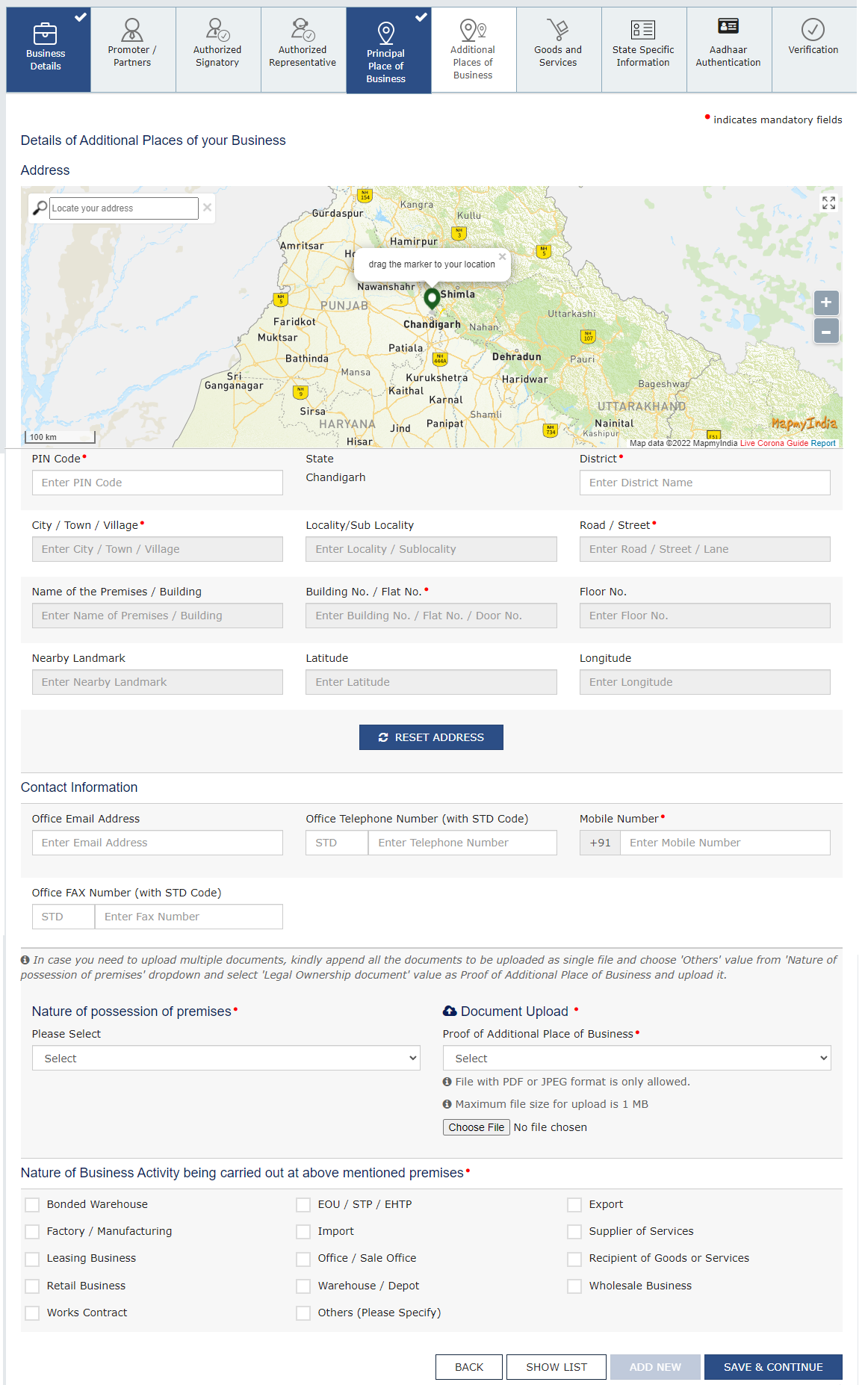
This tab page displays the details of the additional place of the business.
Enter the number of additional places of business and click the ADD NEW button. Enter the details similarly to the Principal Place of Business Details provided above.

Note: You cannot enter additional places of business here if you have selected No for Have Additional Place of Business in the Principal Place of Business Tab.
Note: In case you are applying for registration as Interim Resolution Professionals (IRPs)/ Resolution Professionals (RPs) appointed to undertake corporate insolvency resolution proceedings for Corporate Debtors, in the Principal Place of business/ Additional place of business, you need to provide details as specified in the original registration of the Corporate Debtors.
Note:
- You can upload PDF or JPEG files with a maximum file size for upload of 1 MB.
- You can upload a maximum of 2 documents.
- You can upload these documents for the proof of Principal Place of Business.
- For Own premises – Any document in support of the ownership of the premises, like the latest Property Tax Receipt or Municipal Khata copy, or a copy of the Electricity Bill.
- For Rented or Leased premises – A copy of the valid Rent / Lease Agreement with any document in support of the ownership of the premises of the Lessee like thee latest Property Tax Receipt or Municipal Khata copy, or a copy of the Electricity Bill.
- For premises not covered above – A copy of the consent letter with any document in support of the ownership of the premises of the Consenter, like Municipal Khata copy or Electricity Bill copy. For shared propertie,,s also, the same documents can be uploaded.

- In case you need to upload multiple documents, kindly append all the documents to be uploaded as single file and choose ‘Others’ value from ‘Nature of possession of premises’ dropdown and select ‘Legal Ownership document’ value as Proof of Additional Place of Business and upload it.

21 (g) Goods and Services tab:
This tab page displays the details of the goods and services supplied by the business.
Note: In case you deal with Goods or Commodities, you need to mention the HSN Code in the Goods tab. In case you deal with services, you need to mention the Service Classification Code in the Services tab. You can add maximum 5 goods and 5 services. In case, you have more than 5 goods or services, you must add the top 5 goods or services you are dealing with.
Note: In case, you have opted as a composition taxpayer in Business Details tab and selected the Category of Registered Person as “Manufacturers, other than manufacturers of such goods as may be notified by the Government for which option is not available”, then below screen will appear.

(i). Goods Tab: In some cases, you may know the HSN Code, and in some cases you might not know the HSN Code. Follow the steps given below to fill the HSN Code.
In case you know the HSN Code:
Let us take an example that you need to add the HSN Code 6105. To add the HSN Code, perform the following steps:
a. In the Search HSN Chapter by Name or Code field, enter the first four digits 6105 from the HSN Code. HSN Code is successfully added.
Note: In case you type any of the restricted HSN code, ‘No Results found’ message will be shown on the screen. Enter the valid HSN code of the commodity (eligible to opt for composition levy).

In case you do not know the HSN Code:
Let us take an example where the dealer deals with cotton textile.
a. In the Search HSN Chapter by Name or Code field, type cotton; related HSN Chapter list is displayed. From the displayed list, scroll and select the appropriate option (in this case 5208). HSN Code is successfully added.

(ii). Services Tab: In some cases, you may know the Service Classification Code, and in some cases you might not know the Service Classification Code. Follow the steps given below to fill the Service Classification Code.
In case you know the Service Classification Code:
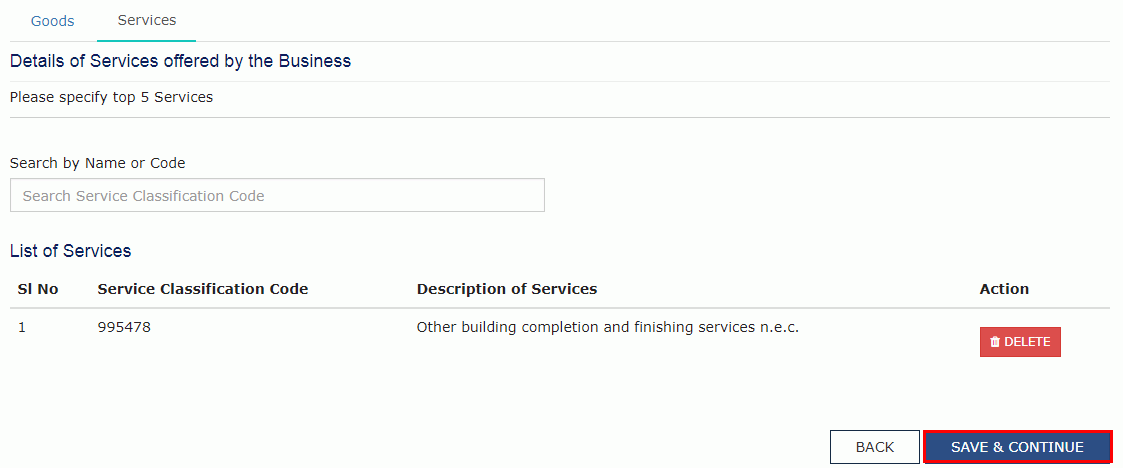
Let us take an example that you need to add the Service Classification Code 995478. To add the Service Classification Code, perform the following steps:
a) In the Search Service Classification Code field, enter the first four digits 9954 from the Service Classification Code. Service Classification Code is successfully added.
In case you do not know the Service Classification Code:
Let us take an example where the dealer deals with other building completion and finishing services.
a) In the Search HSN Chapter by Name or Code field, type other building; related Service Classification Code list is displayed. From the displayed list, scroll and select the appropriate option (in this case 995478). Service Classification Code is successfully added.
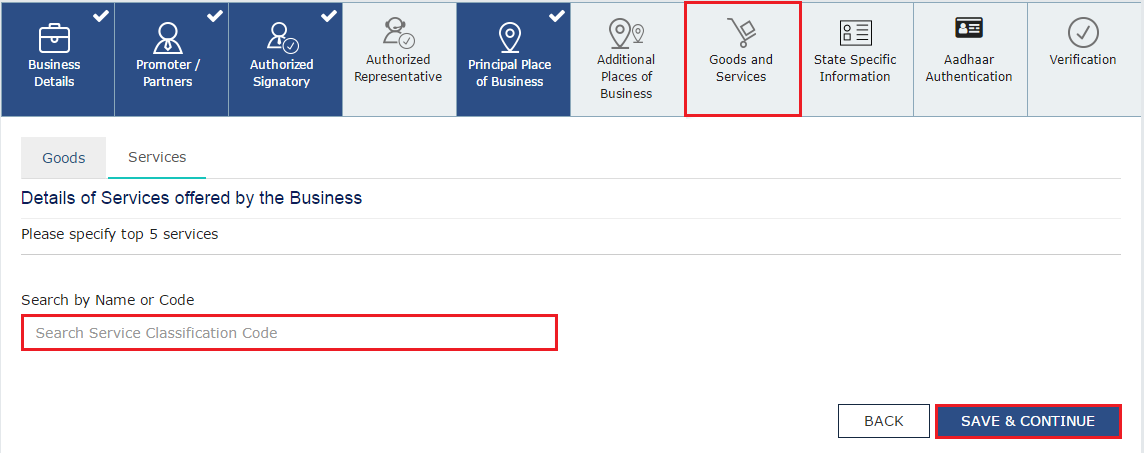
b) Click the SAVE & CONTINUE button.
21 (h) State Specific Information tab:
This tab page displays the details of the state.
a) The field Nature of possession – Principal Place of Business is auto-filled.

Note: Currently, furnishing of the CA Number is mandatory for the Normal and Casual taxpayers of Maharashtra and Madhya Pradesh state only.
b) Select the Name of the Electricity Board or Unit from the drop-down list.

c) In the CA Number/Electricity Consumer Number field, enter the CA Number.

Note 1: If you enter incorrect CA Number, following error message will be displayed.


Note 2: If you select the Name of Electricity Board/Unit, for e.g.The Brihanmumbai Electric Supply and Transport Undertaking, a popup message will be displayed to enter the CA Number provided by the BEST. Click the OK button.

d) In the Professional Tax Employee Code (EC) No. field, enter professions tax EC number.
e) In the Professional Tax Registration Certificate (RC) No. field, enter professions tax RC number.
f) In the State Excise License No. field, enter state excise license number.
g) In the Name of the person in whose name Excise License is held field, enter the name of the person in whose name excise license is held.
h) Click the SAVE & CONTINUE button.

21 (i) Aadhaar Authentication tab:
This tab page displays the details of the verification for Aadhaar authentication submitted in the form. You can opt Yes or No for Aadhaar authentication of Promoters/ Partners, Authorized Signatories. By default Yes option will be selected.

Aadhaar authentication is based on constitution of business (COB). The following table explains and lists the Aadhaar authentication for different constitution of business:
| S.No. | Constitution of Business | Nature of Person | Aadhaar Authentication Required |
| 1 | Proprietorship Concern | Proprietor | Yes (only 1 Proprietor + Primary Authorized Signatory) |
| Authorized Signatory | |||
| 2 | Partnership Firm | Partners | Yes (only 1 Partner + Primary Authorized Signatory) |
| Authorized Signatory | |||
| 3 | HUF | Karta | Yes (1 Karta + Primary Authorized Signatory) |
| Authorized Signatory | |||
| 4 | Company (Public, Private, Unlimited) | Authorized Signatory | Yes (Primary Authorized Signatory) |
| Directors | One Director only | ||
| 5 | Company (Foreign Limited) | Authorized Signatory | Yes (Primary Authorized Signatory) |
| Authorized Person in charge in India | Yes | ||
| 6 | Limited Liability Partnership | Designated Partners | One partner only |
| Authorized Signatory | Yes (Primary Authorized Signatory) | ||
| 7 | Society/Club/Trust/Association of Person | Members of Managing Committee | One member only |
| Authorized Signatory | Yes (Primary Authorized Signatory) | ||
| 8 | Other | Person in Charge | One person only |
| Authorized Signatory | Yes (Primary Authorized Signatory) |
In case, you have selected Aadhaar Authentication as Yes:
a) Select Yes, in case, you want to opt for Aadhaar authentication of Promoters/ Partners, Authorized Signatories.

b) From the list displayed on the Aadhaar Authentication tab, select at least one person for Aadhaar authentication. Click the SAVE & CONTINUE button.

c) On clicking of SAVE & CONTINUE button a popup will be displayed on the screen. Click on OK button.

Note:
a) Once you submit new registration application (REG-01), then PAN validation will be done with CBDT and basis risk parameters. After that you will have to undergo OTP based Authentication/Biometric Authentication.
OTP base authentication:
b) Once you have opted Yes for Aadhaar authentication while registering on the GST Portal and registration application is submitted, and if OTP based authentication is applicable, then an authentication link will be shared on mobile number & email (as given in registration application on GST Portal), of Promotor/Partner, and Primary Authorized Signatory which are selected upon submission of registration application.
Please note you will receive common OTP on mobile number and E-mail ID linked with your Aadhaar for its authentication.
ARN will be generated once Aadhaar Authentication exercise is completed for all applicable persons whose name are selected in this table.
Biometric base authentication:
c) Once you have opted Yes for Aadhaar authentication while registering on the GST Portal and registration application is submitted, and if Biometric based authentication is applicable, then you have to book a slot for visiting the designated GSK (where he needs to biometric/document authentication done).
In this case the persons added in the Promoter/Partner tab, will only be required to get their Biometric Authentication done by visiting the designated GSKs and he/she will not have to get the Document Verification done.
If Promoter/Partner and PAS are same, then that person will be required to get the biometric authentication and document verification done (in first time) and document verification done (in subsequent applications). The documents (Photographs) of promoter/partner will be verified along with the documents of PAS by PAS only. It is advised that the promoter/partner visit the GSK prior to PAS.
d) If anyone Promoter/Partner or PAS or both, fails to visit the GSK for getting his/her biometric authentication and document verification, ARN would not be generated.
In case any one of Promoter/Partner or PAS or both, visits the GSK but his/her biometric authentication gets failed, or document verification remains incomplete (within time period of 15 days), ARN would not be generated.
e) If taxpayer has selected Constitution of Business (COB) as Public Limited Company, Private Limited Company, Foreign Company or Unlimited Company, then the person added in Promote/Partner(PP) tab for Biometric Authentication, can visit any GSK of his home state to do biometric authentication by selecting the GSK under Home State GSK selection for Promoter/Director of specific COBs functionality. Click here to know more under Home State GSK selection for Promoter/Director of specific COBs functionality.
This is applicable only for Partner/Promoter and not for Primary Authorized Signatory(PAS). Thus, if PAS and PP are same person then the option of visiting home state GSK for biometric will not be available.
However, if the Promote/Partner is resident (citizen parameter has selected as Yes) and he has entered his residential address as of outside India, he will have to visit the jurisdictional GSK for biometric authentication.
In case, you have selected Aadhaar Authentication as No:
a) Select Aadhaar Authentication toggle button as No in case, you do not want to opt for Aadhaar authentication of Promoters/ Partners, Authorized Signatories. By default, Aadhaar Authentication toggle button is selected as Yes.

You will receive a warning message that you have opted No for Aadhaar authentication. Click OK.

b) You can upload E-KYC documents for Primary Authorized Signatory and at least one Promoter/Partner.

Note:
i) Ensure that the E-KYC documents selected for upload have your name as spelled in PAN/CBDT database.

ii) File with PDF or JPEG format is only allowed. The maximum size for upload is 2 MB.
iii) The Aadhaar Enrollment ID should be different for different Promoter/Partners and Authorized Signatories. In case you enter the same Enrollment ID, an error message will be displayed.

c) Click the SAVE & CONTINUE button.

Note:
i) You can click the DELETE button to delete the uploaded documents, if required.
ii) If one person from Promoter/Partner is not selected for Authentication, apart from Primary Authorized Signatory, if both are different persons, then on clicking of SAVE & CONTINUE button following error message will be displayed on the screen.

d) If you have opted No for Aadhaar authentication, you will have to undergo a photo capturing and document verification process at designated GSKs. In case, you are not appearing for Photo Capturing and Document Verification, or you have visited the GSK, but Photo Capturing and Document Verification not completed within 15 days, then no ARN will be generated. Promoter/Partner will also have to get Document Verification done.
21 (j) Verification tab:
This tab page displays the details of Promoters/ Partners, Authorized Signatories for getting the Aadhaar authentication link.
Note: In case you want to register as Interim Resolution Professionals (IRPs)/ Resolution Professionals (RPs) appointed to undertake corporate insolvency resolution proceedings for Corporate Debtors, you need to submit the registration application electronically on GST Portal under DSC of the IRP or RP
a. Select the Verification checkbox.
b. In the Name of Authorized Signatory drop-down list, select the name of authorized signatory.
c. In the Place field, enter the place where the form is filed.
d. After filling the enrolment application, you need to digitally sign the application using Digital Signature Certificate (DSC)/ E-Signature or EVC.
Digitally signing using DSC is mandatory in case of LLP and Companies.
The Enrolment Application can be electronically signed using E-Signature only if the authorized signatory has an Aadhar number and same is mentioned in the Authorized signatory tab page of the Enrolment Application. This is because E-Signature is an Aadhar based electronic verification service.
In Case of DSC:
e. Click the SUBMIT WITH DSC button.
Note: In case, your DSC is not registered, you will need to register DSC.
Note:
• Make sure your DSC dongle is inserted in your laptop/ desktop.
• Make sure emSigner (from eMudra) is running on your laptop/ desktop with administrator permissions.
To check if the emSigner is running on your laptop/ desktop, perform the following steps:
1. Click the item tray.
2. Double click the emSigner icon.
3. Click the Hide Service button to minimize the dialog box.
4. Select the certificate and click the SIGN button.
5. Enter the PIN (dongle password) for the attached DSC.
Note:
To view the details of your DSC, click the View Certificate button.
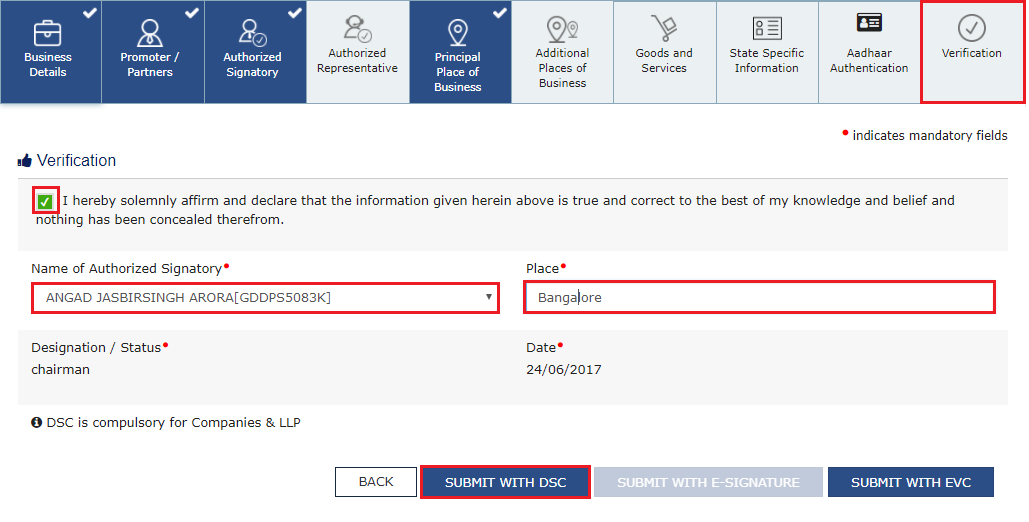
f. Click the PROCEED button.

g. Select the certificate and click the SIGN button.

h. The success message is displayed. You will receive the acknowledgement in next 15 minutes on your registered e-mail address and mobile phone number. Application Reference Number (ARN) receipt is sent on your e-mail address and mobile phone number.
You can track the status of your application using the Services > Registration > Track Application Status command.

In Case of E-Signature:
e. Click the SUBMIT WITH E-SIGNATURE button.
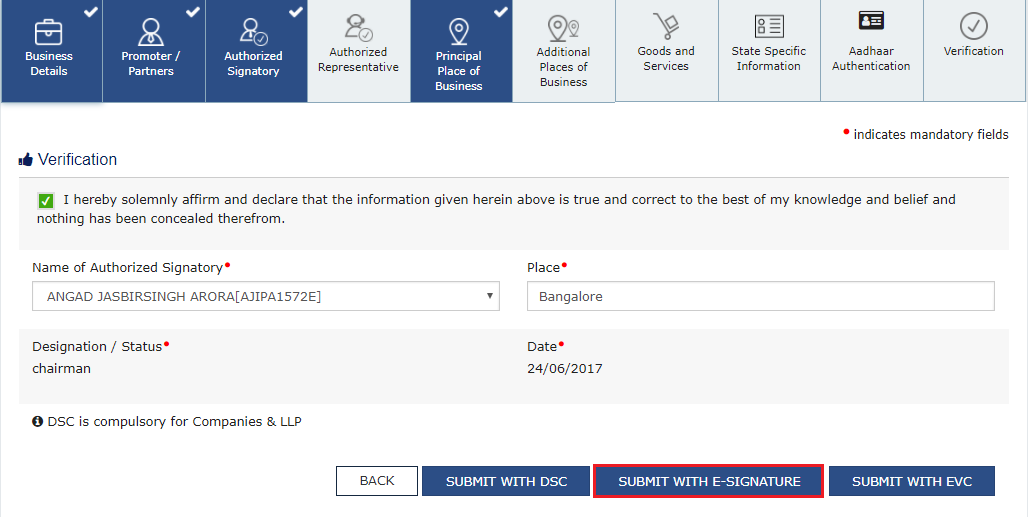
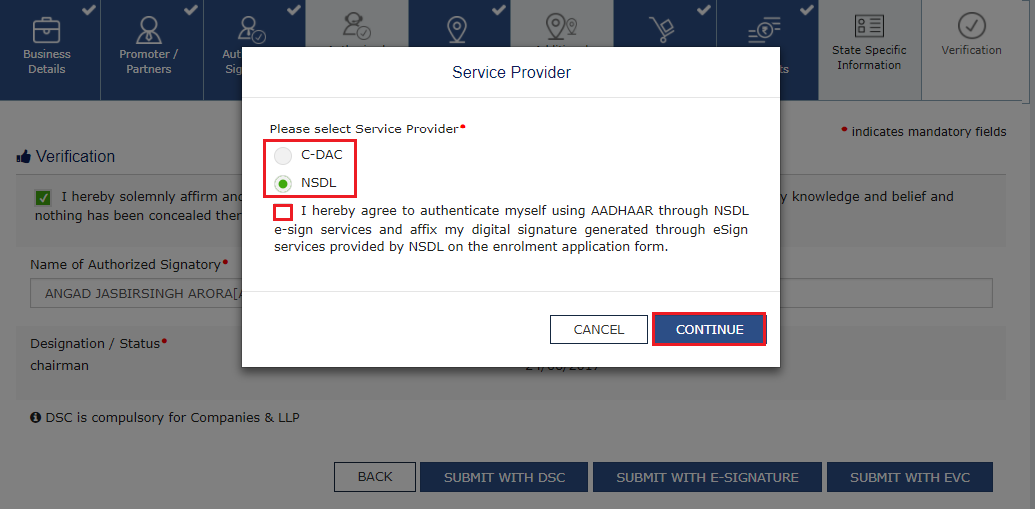
f. In the Please select Service Provider option, select the appropriate Service Provider.
Note: C-DAC and NSDL are e-sign Service Providers (Both are free of cost).
g. Select the checkbox for declaration.
Note: OTP will be sent to your e-mail address and mobile phone number registered with Aadhaar.
h. Click the CONTINUE button.
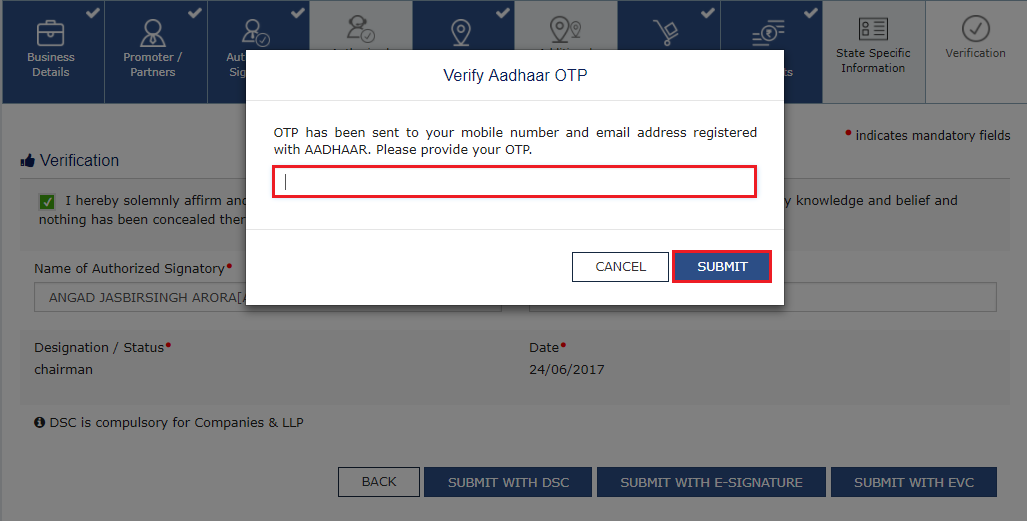
i. Verify Aadhaar OTP screen is displayed. Enter the OTP received on your e-mail address and mobile phone number registered with Aadhaar. Click the SUBMIT button.
The success message is displayed. You will receive the acknowledgement in next 15 minutes on your registered e-mail address and mobile phone number. Application Reference Number (ARN) receipt is sent on your e-mail address and mobile phone number.
In Case of EVC:
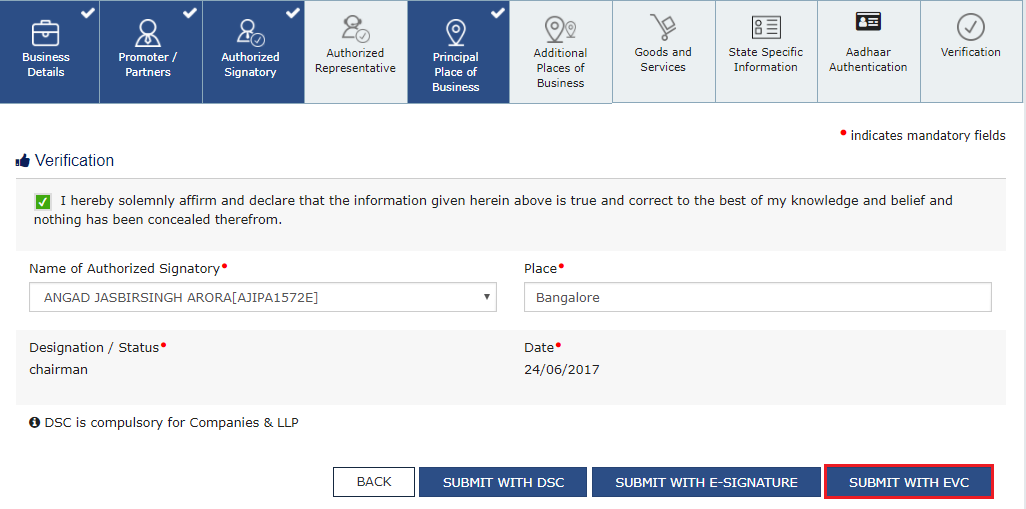
e. Click the SUBMIT WITH EVC button.
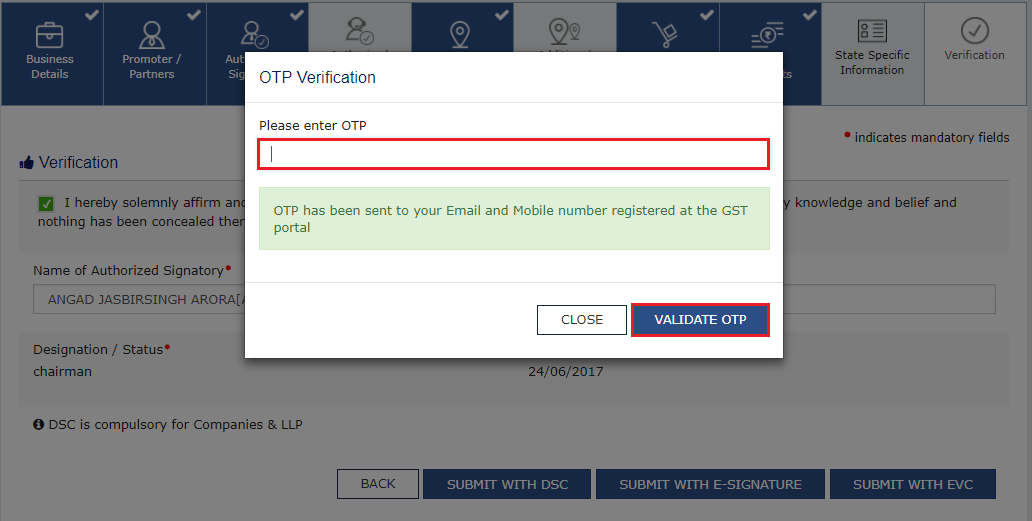
f. Enter the OTP sent to email and mobile number of the Authorized Signatory registered at the GST Portal and click the VALIDATE OTP button.
g. The success message is displayed. You will receive the acknowledgement in next 15 minutes on your registered e-mail address and mobile phone number. Application Reference Number (ARN) receipt is sent on your e-mail address and mobile phone number.
Aadhaar Authentication (E-KYC) via link shared on GST registered mobile number and e-mail IDs
Once you have opted “Yes” for Aadhaar authentication while registering on the GST Portal and registration application is submitted, an authentication link will be shared on GST registered mobile number and e-mail IDs of the Promoters/ Partners and Authorized Signatories. Aadhaar authentication link will be received on e-mail IDs of the Promoters/ Partners or Authorized Signatories as mentioned in the registration application and is valid only for 15 days.
- Please note you will receive common OTP on mobile number and E-mail ID linked with your Aadhaar for its authentication.
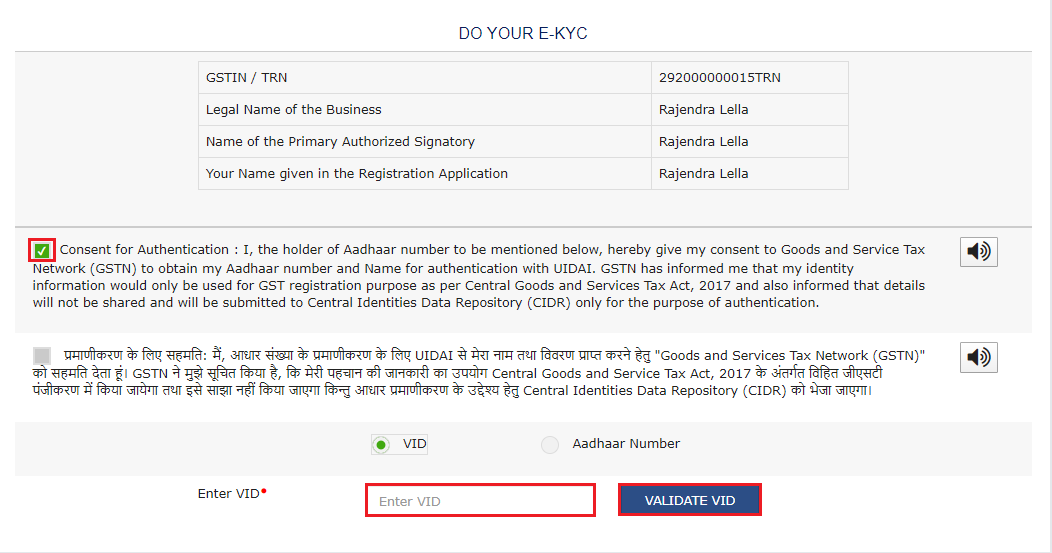
22. Click the authentication link received on GST registered mobile number and e-mails IDs of the Promoters/ Partners, Authorized Signatories. Select the Consent for Authentication. Enter your VID or Aadhaar Number.

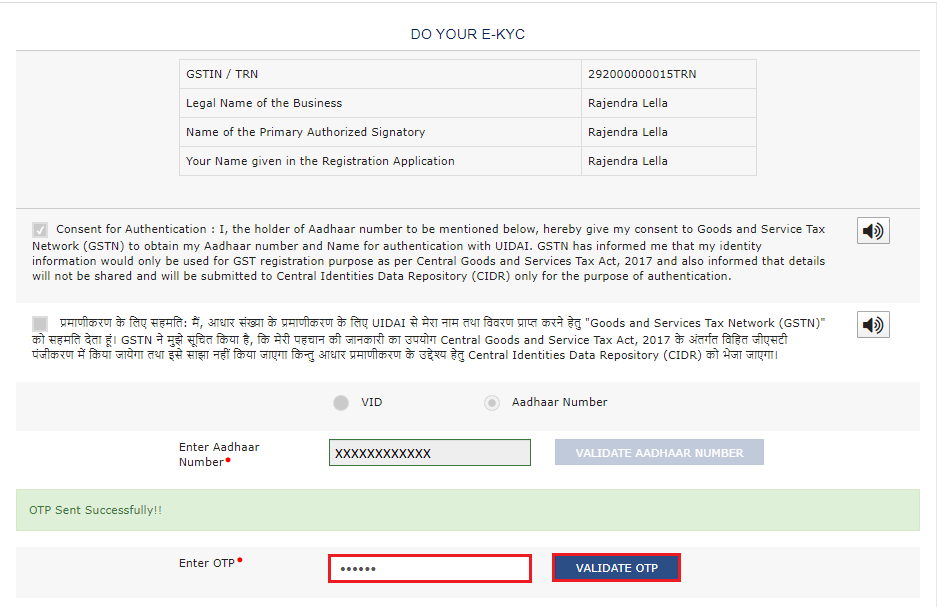
23. Enter the OTP sent to email and mobile number of the Authorized Signatory registered at the UIDAI and click the VALIDATE OTP button.
Note: You can request for Aadhaar OTP again only after 45 seconds has passed from the previous request of Aadhaar OTP.
24. A success message is displayed when Aadhaar is successfully verified for e-KYC authentication. Click OK.

Note:
- In case verification fails, following message will be displayed on the screen.

- GSTN system identifies that there is mismatch in name as per UIDAI database and in Registration application, an e-mail and SMS will be sent to taxpayer notifying the same.
- Aadhaar authentication link will be received on e-mail IDs of the Promoters/ Partners or Authorized Signatories as mentioned in the registration application and is valid only for 15 days.
- Please note you will receive common OTP on mobile number and E-mail ID linked with your Aadhaar for its authentication.
- If Aadhaar authentication link is used once for authentication, same authentication link cannot be accessed again.
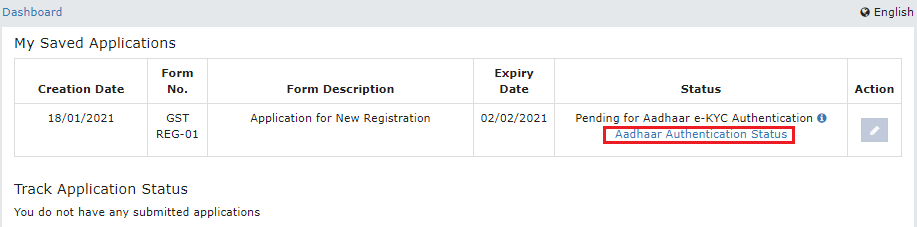
- Navigate to My Saved Applications > Aadhaar Authentication Status > RESEND VERIFICATION LINK, to resend the authentication link to mobile number and e-mails IDs of the Promoters/ Partners or Authorized Signatories mentioned in the application. You need to verify your Aadhaar details within 15 days of the generation of the TRN. A sample screenshot has been provided below for reference.
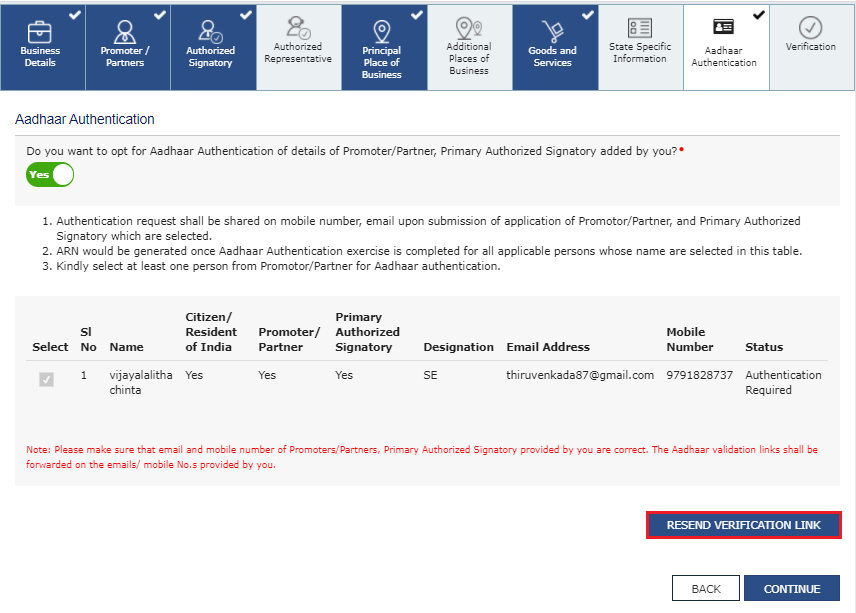
• Once the link is shared, the taxpayer will not be able to resend the verification link again up to 10 minutes. If he clicks the link before 10 minutes, following error message will be displayed on the screen.

• In case authentication fails, taxpayer will be able to trigger through Resend Authentication link.
📩 If you notice any incorrect data in this guide or wish to share additional information, please write to us at info@indiansouls.in.
Over 2000+ Government Schemes & Policies Simplified
Indian Souls is your guide to government Schemes, scholarships, pensions, subsidies, job exams, and more. We break complex schemes into easy steps, helping every citizen take full advantage of the opportunities available.
No jargon. No confusion. Just useful info that helps indian citizen.






![12 Government Schemes for Urban Poor Must Know About [2025 Guide]](https://indiansouls.in/wp-content/uploads/2025/05/image-1.jpg "GST Registration - Ultimate Step by Step Guide - Indian Souls")







































 Rajesh Tanwar












%20–%20A%20Complete%20Guide)

%202026)

%20–%202025%20Complete%20Guide:%20Latest%20Updates,%20How%20It%20Works%20&%20Who%20Qualifies)

)


)

:%207%20Key%20Benefits%20&%20Complete%20Guide%20for%20Secure%20Retirement)


